

Today’s topic is how to install Sentora on CentOS 7. Sentora is a free and open-source web hosting control panel designed for Linux, UNIX, and BSD-based servers. Sentora software can turn a home or commercial server into a fully managed, easy-to-use, and managed web hosting server. It is licensed under the GPLv3 and is maintained separately by the ZPanel project. In this guide, you will learn how to install Sentora CP on CentOS 7.
How to install Sentora on CentOS 7
Requirements:
- Fresh minimal installation of Centos 7 with no configuration changes.
- A static IP address.
Configure the hostname
Note: The hostname must be different from your main domain. (For example, if example.com is a domain on your server, use hostname.example.com as your fully qualified hostname).
For hostname setup you can use the following command eg. oudel.localhost.localdomain.
# hostnamectl set-hostname oudel.localhost.localdomain
# hostnamectl

Setup the firewall
You must open the following ports used by the Sentora configuration on the firewall so that all services run without any problems.
You must open the following ports used by the Sentora configuration on the firewall so that all services run without any problems.
20 & 21 : FTP
22 SSH
25 (TCP) : SMTP
53 (TCP & UDP) : DNS
80 (TCP & UDP) : HTTP
110: POP3
143: IMAP
443: HTTPS
3306: MySQL
Use the command below to add the port to the firewall and reload it to apply the new changes.
# firewall-cmd --zone=public --permanent --add-port={20/tcp,21/tcp,22/tcp,25/tcp,53/tcp,80/tcp,110/tcp,143/tcp,443/tcp,3306/tcp}
# firewall-cmd --reload

Installing Sentora
First, install the wget package using the command below
# yum install wget -y
Now download the installer and execute it using the below commands
# cd
# wget http://sentora.org/install
# chmod +x install

Start the Sentora installation using the command below
# ./install
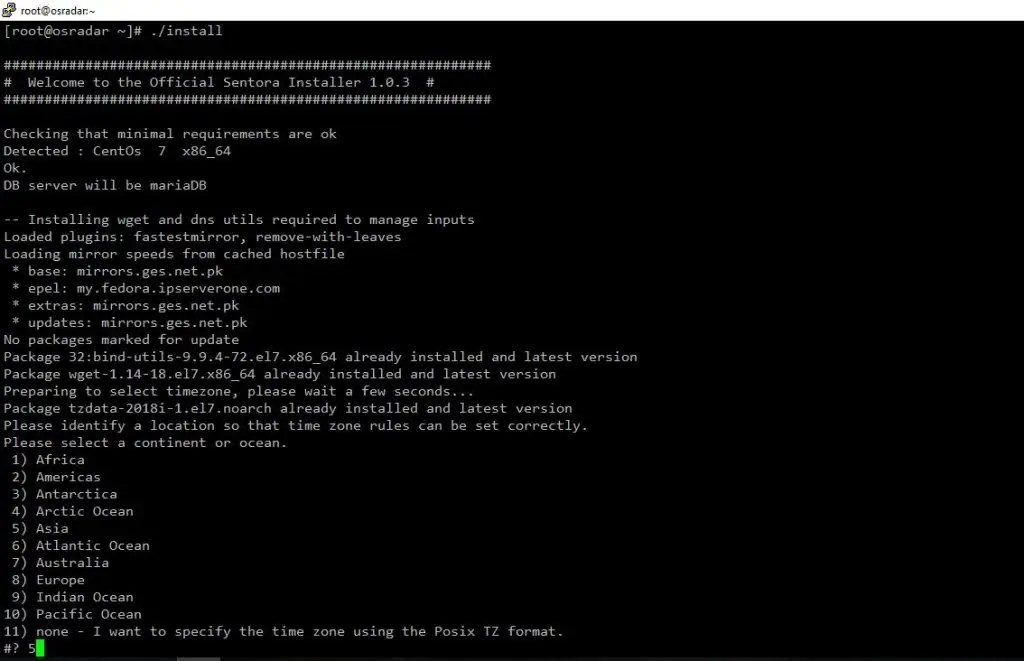
During the installation process, you will be asked to choose your geographic area and time zone. So choose your location, set your time zone, and press “enter” to continue In my case, I will use Asia.

In the next step you will be asked to configure the sub-domain, which will be used to access the Sentora panel, and secondly set the server’s public IP.

Here you can get warnings about your DNS configuration if it is not configured correctly add records to your DNS manager.
Press “Y” to accept and install Senotra on your chosen subdomain with the given IP. Installation may take more than 30 minutes depending on your internet connection, as it needs to install and activate all required packages for the server.

When the installation is complete, you will be greeted with Sentora login details, copy all login details before restarting (a file of login details is also kept in /root/passwords.txt). Now Click “Y” and ENTER key to restart server.
Login to Sentora Control Panel
Once the server has booted, open your web browser and access your Centora Control Panel using the sub-domain or IP address of your server and type your credentials to log in.
http://SERVER-IP OR http://SUB-DOMAIN


Congratulations! You have successfully installed the latest version of Sentora on your CentOS 7 server. Now you can manage your multiple domain web hosting for free on your own hosting server. Learn how to secure Linux VPS.


