

Today we will learn How to Install Python on Windows. Python is a very popular programming language all over the world. Today we will show how to install Python 2 and Python 3 on the Windows operating system.
Python is not pre-installed on Windows. However, installing Python on Windows systems and creating Python programs is not that difficult. Through this article, we will guide you with all the necessary information along with the necessary steps to install and run Python on Windows. But before that, let’s look at Python itself.
Python is a popular high-level programming language widely used in software development as well as web development. It has always been a favorite of hobbyists and qualified developers due to a design concept that emphasizes readability. Python is one of the easiest programming languages to learn and understand, which accounts for its growing popularity.
What version of Python will users need?
Unfortunately, a major upgrade to Python many years ago resulted in a large hiatus between Python releases. This can be a bit confusing for beginners but don’t worry, we’ll show you how to set up all major versions of Python on Windows. When you visit Python’s official website and navigate to the Python Downloads tab for Windows, you will notice a large number of Python versions that are available for download. The registry always asks if you need to upgrade to the latest version of Python 2 or Python 3.
If you want to get the most out of Python, we recommend running both Python 2 and Python 3 versions simultaneously. This helps you use the latest Python version when handling older Python scripts and testing the functionality of projects built using a newer version of Python.
If you are sure that you only need one version of Python, you can install only Python 2 or Python 3 according to your needs. However, we go the extra mile to show you the installation of each of these. We recommend you follow the steps closely to be able to successfully install Python on your Windows system.
1st, install the “x86-64” installer for the specific Python version highlighted in the image below:

Python 2 installation instructions
Updating Python 2 is simple, and unlike previous versions, the installer will also set the path variable for you (which we’ll discuss later).
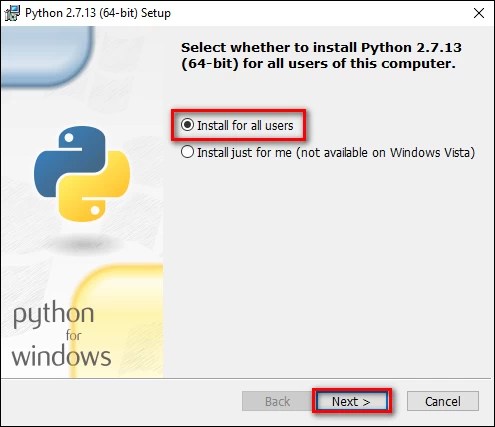
- Download & run the installer, Now press “Next” after selecting the option “Install for all users”.
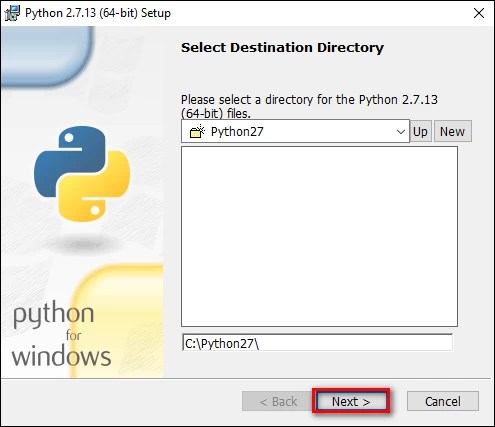
- Leave the folder as “Python27” and press “Next” on the Select Destination Directory page.
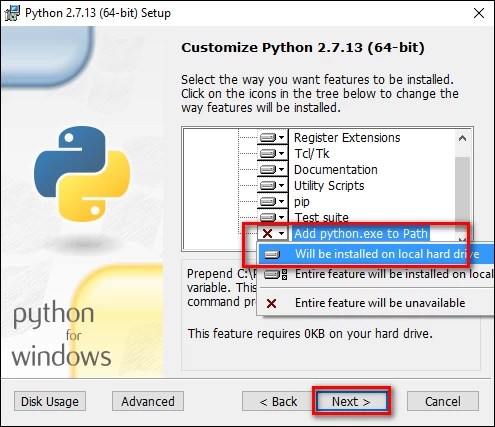
- Scroll down to “Add python.exe to path”, then select “Will install to local hard drive” in the customization screen. Now Hit the “Next” button when you are done.
Now, you don’t have to make any other choice. To complete the installation, we simply follow the instructions. When the installation is complete, open a command prompt and type the nt command to connect the installation:
python -V

If you need Python 2.7 to work on your project, you should stop here. It’s successfully installed on your Windows system and the path variable is configured, so you’re ready to use Python.
Python 3 installation instructions
Python 3 must be installed if you want to work with the latest version of Python. It will fit very well with Python 2.7, so go ahead and install it on your system.
- After downloading the installer for the latest Python 3 version (which is Python 3.6 at the time of writing), run the installer. Enable the “Add Python 3.6 to Python” option on the first page, then press “Install Now”.
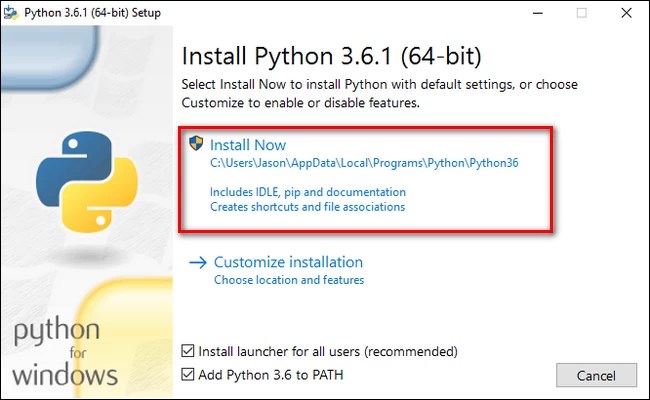
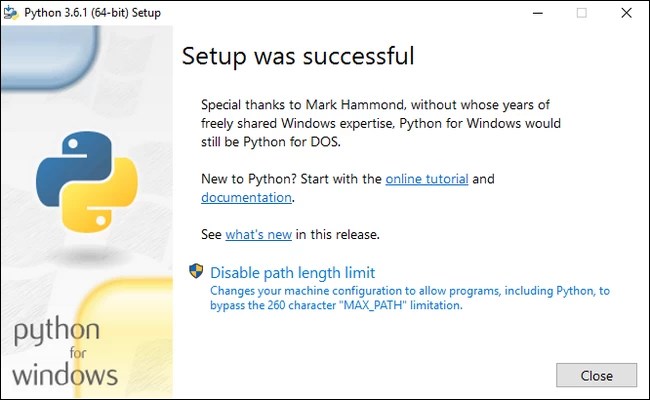
After that, you have to make a choice. The MAX PATH variable is no longer limited when you select the option “Disable path length limit”. This update won’t cause any problems, but it will enable Python to use long path descriptions. Since many Python programmers work on Linux and other *nix systems where the width of the path description is not really an issue, enabling it beforehand will help you avoid any path-related problems you might encounter when operating on Windows.
We suggest you choose that option. If you are sure that you do not want to disable the path length restriction, simply press “Close” to complete the installation.
If you are installing Python 3, type python -v to see if it is loaded correctly and if the path variable is set. However, if you have downloaded both the Python 2 and Python 3 versions, make a simple change that is described in the upcoming section.
Change the default settings to provide command-line access to all Python versions
This section is entirely optional, but it’ll allow you to simply switch between different versions of Python from the command-line interface (CLI). Even though the system path of both Python installations is available, typing “python -v” at the command prompt returns only Python 2.7. The explanation is simple; Vector just points to a folder and becomes any executable command-line command in that directory (whether it’s automatically changed by the installer or manually tweaked).
If two files are specified with a “python.exe” file each, the highest folder in the variable list will be used. Machine paths take precedence over user paths when both process and operator parameters are configured.
Python installer
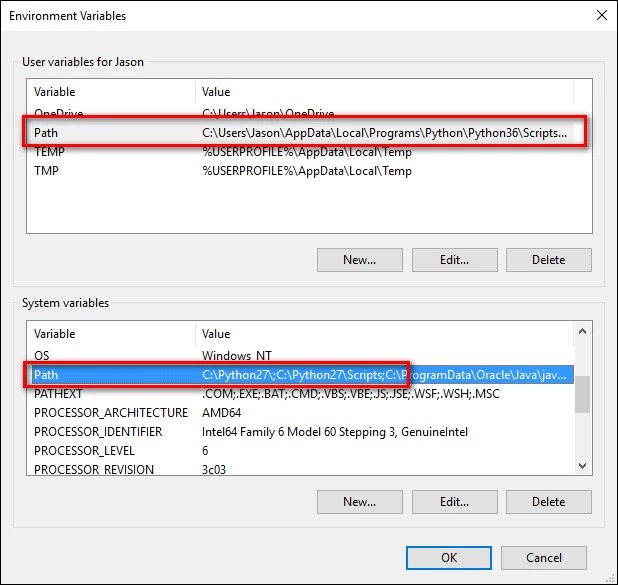
What exactly is happening in this scene: The Python 2 installer changed a system-wide variable, while the Python 3 installer introduced a user-level variable, as we can see from Windows environment variables.
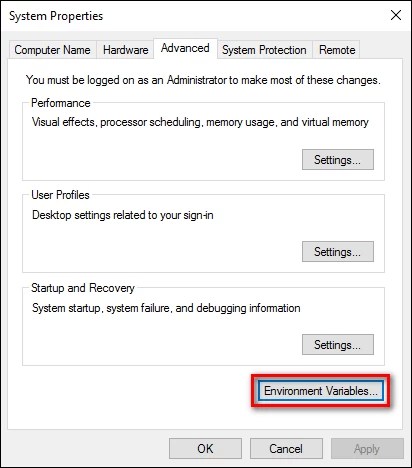
After typing “advanced system settings” in the search box select the “View advanced system settings” option from the Start menu. In the “Advanced” tab of the displayed “System Properties” window, press the “Environment Variables” button.
In the “User Variables” column, Python 3 is listed, while, Python 2 is listed in the “System Variables” section.
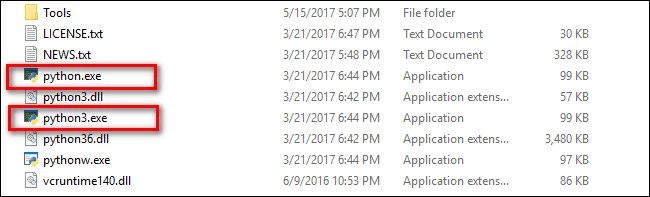
There are a couple of options to deal with this. The easiest solution is to delete the entry for the Python version you least want to use. Although this is straightforward, it is not particularly enjoyable. Instead, we should make a different change that allows us to refer to Python 2 as “Python” and Python 3 as “Python3”. To do this, open File Manager and navigate to the Python 3 installation folder (C:\Users\[username]\AppData\Local\Programs\Python\Python36 by default). Create a duplicate of the “python.exe” file and rename that duplicate to “python3.exe”.
Create a new command prompt on your device. Your environment variables are refreshed every time you open a new command prompt window and type “python3 –version”.

It’s a blast! When you want to use Python 2.7, you can always use the “python” command in cmd, and when you want to use Python 3, use the “python3” command.
Conclusion
Python is a popular high-level programming language used for software and web development. We have seen how to easily install Python 2 and Python 3. We can run both versions of Python simultaneously to convert our Python 2 files to Python 3 and vice versa.


