

To find out what your SMTP server is, you need to check your email account’s outgoing mail settings or view the email headers of a sent message. In most cases, your SMTP server is listed in your email client under “Outgoing Mail Server (SMTP).” If you’re using a provider like Gmail or Microsoft Outlook with Microsoft 365, the SMTP server is usually something like smtp.gmail.com or smtp.office365.com. You can also identify it by examining the “Received” lines in an email’s full headers.
Now let’s go deeper and walk through all the reliable ways to discover your SMTP server — whether you’re using webmail, desktop clients, mobile devices, or a website.
What Is an SMTP Server?
SMTP stands for Simple Mail Transfer Protocol. It is the server responsible for sending your outgoing emails to recipients.
Whenever you click “Send,” your email client connects to an SMTP server, authenticates your login credentials, and then delivers the message to the recipient’s mail server.
If your SMTP server is misconfigured, emails may:
Fail to send
Bounce back
Go to spam
Show authentication errors
That’s why knowing your SMTP server is essential for troubleshooting and proper setup.
Method 1: Check Your Email Client Settings (Easiest Way)
The fastest way to find your SMTP server is inside your email account settings.
In Microsoft Outlook
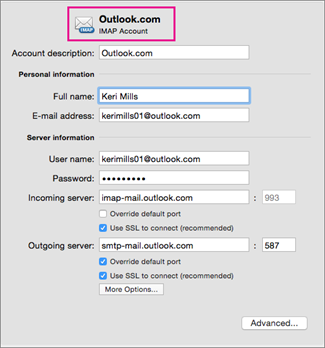
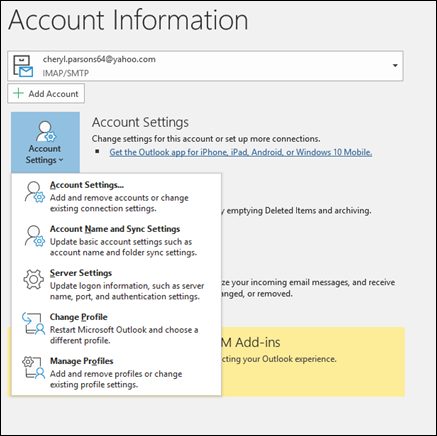

Steps:
Open Outlook.
Click File.
Select Account Settings > Account Settings.
Choose your email account.
Click Change.
Look for the field labeled Outgoing mail server (SMTP).
You will see something like:
smtp.office365.comsmtp.gmail.commail.yourdomain.com
That is your SMTP server.
In Thunderbird
Steps:
Open Thunderbird.
Go to Account Settings.
Scroll to Outgoing Server (SMTP).
Check the Server Name column.
That value is your SMTP server.
On Mobile Devices (Android / iPhone)
Open Mail Settings.
Select your email account.
Tap Outgoing Mail Server.
The SMTP server address will be displayed.
Method 2: Check Your Email Provider
Sometimes you don’t need to dig into settings. Many providers use standard SMTP servers:
Gmail →
smtp.gmail.comMicrosoft 365 →
smtp.office365.comYahoo →
smtp.mail.yahoo.com
If your email ends with @gmail.com, your SMTP server is almost always smtp.gmail.com.
If it ends with your own domain (like @yourcompany.com), the SMTP server is often:
mail.yourcompany.comOr your hosting provider’s mail server
Method 3: Check Email Headers (Most Accurate Method)
If you want to confirm exactly which SMTP server sent a specific email, checking the email header is the most reliable method.
In Gmail
Steps:
Open the email.
Click the three dots (⋮).
Select Show original.
Look for lines starting with:
Example:
This shows which SMTP server was used to send the email.
The earliest “Received” line usually identifies the sending server.
Method 4: Check Your Website SMTP Configuration
If you’re trying to find the SMTP server used by your website (like WordPress):
Log in to your website dashboard.
Open your SMTP plugin (e.g., WP Mail SMTP).
Look for the SMTP Host field.
You may see:
smtp.gmail.com
smtp.office365.com
mail.yourdomain.com
A third-party provider
This is especially important if your contact form emails are not sending properly.
Method 5: Ask Your Hosting Provider
If you use custom domain email (like [email protected]), your hosting provider usually provides the SMTP server.
Check:
Hosting control panel (cPanel / Plesk)
Welcome email from hosting company
Support documentation
Often the SMTP server matches:
SMTP Ports You Should Verify
When identifying your SMTP server, also check the port number:
587 (TLS) – Recommended
465 (SSL) – Secure alternative
25 – Older, often blocked
Correct server + correct port + authentication = working email.
Why You Might Need to Find Your SMTP Server
You may need your SMTP server for:
Setting up a new device
Configuring Outlook or Thunderbird
Connecting your website contact form
Fixing “cannot send email” errors
Improving deliverability
Setting up SPF, DKIM, DMARC
Migrating email accounts
Without the correct SMTP server, emails simply won’t send.
How to Identify SMTP by Domain Name
If you only know your email address:
Example:
Try:
Checking MX records using online tools.
Looking at your provider’s support page.
Logging into webmail and reviewing settings.
However, MX records show incoming mail servers, not always outgoing SMTP servers — so checking account settings remains the best method.
Common Problems When Finding an SMTP Server
1. Multiple SMTP Servers Listed
Some clients show several SMTP options. Make sure your account is assigned to the correct one.
2. Webmail Only Access
If you use webmail only, SMTP settings may not be visible. In that case, check the provider documentation.
3. Third-Party Email Services
If your company uses services like SendGrid or Amazon SES, your SMTP server may not match your domain.
Security Tips
When checking your SMTP server:
Never share your SMTP password publicly.
Use strong passwords.
Enable two-factor authentication.
Use app passwords for third-party apps.
Avoid using Port 25 unless required.
SMTP credentials can be abused if leaked.
Quick Checklist
- Open email account settings
- Look for “Outgoing Mail Server (SMTP)”
- Verify port number (587 recommended)
- Check the authentication method
- Review email headers for confirmation
- Confirm with the hosting provider if needed
Final Thoughts
Finding out what your SMTP server is usually takes just a few minutes. The easiest method is to check your email client’s outgoing server settings. For precise confirmation, reviewing the email headers gives the most accurate answer.
Knowing your SMTP server helps you fix sending errors, configure devices correctly, and ensure secure, reliable email delivery. Whether you’re setting up a new computer, connecting to a website, or troubleshooting delivery issues, identifying your SMTP server is the first and most important step.
Once you understand where your outgoing mail is routed, you gain full control over your email system — and that’s essential for both personal users and businesses.


