

Today we will learn how to enable remote desktop protocol ( RDP ) on Windows 10. If you want to use the Remote Desktop Protocol in Windows 10, you’ve come to the right place. This article will provide an in-depth analysis of how to enable remote desktop in Windows 10 and enable RDP on your PC. The main purpose of a Remote Desktop is to allow remote access to that device using RDP. Simply put, this feature is generally used when you are not physically present in front of the desktop but want to access it.
In Windows 10, you can configure settings and then enable Remote Desktop on your system. Now, there are various ways in which you can accomplish this task. Let’s see:
How to Enable Remote Desktop Protocol on Windows 10?
Here’s how you start your journey with enabling RDP in Windows 10:.
- Windows settings
- command prompt
- control panel
- source of energy
Let’s analyze each pointer in detail.
System 1: Enable Remote Desktop Using Settings [Step-by-Step Guide]
Follow the steps outlined below to enable Remote Desktop in Windows 10 through Settings:
Step 1: First you need to go to the Settings section and search for Remote Desktop and select Remote Desktop. Simply click on the Enable Remote Desktop option as shown in the snapshot below.

Step 2: Now, click on confirm and proceed.
Step 3: You now need to go to the Advanced Settings page and select the ‘Require computer to use network-level authentication for connection’ option. But what is the need to choose this option? Well, this feature helps to make your connection extra secure.
Users are asked to authenticate with the network before connecting to the device. Hence, this option proves helpful for you in the long run. take a look.

As you can see, in the last section of the window, there is some information about the current Remote Desktop port. Now, if you want to configure the router to allow remote connections outside of your network’s domain, you can make specific changes here. Otherwise, the default RDP port number will always be 3389.
Moving on, our next segment is to understand the process of enabling Remote Desktops using the Control Panel.
System 2: Enable Remote Desktop using Control Panel
To accomplish this objective follow these simple steps:
Step 1: Go to Control Panel and choose System and Security. On the right, find System and tap the Allow remote access option. Check out the picture below.

Step 2: Now, click on System Properties, and in the Remote Desktop section, select the option – ‘Allow remote connections to this computer.’ Then click Apply and then OK.
Note that whenever you enable this feature using Control Panel, NLA or Network Level Authentication will be selected automatically. Else, you need to enable this option on your system.
Furthermore, let’s analyze the process of enabling Remote Desktop using Command Prompt.
System 3: Enable Remote Desktop using Command Prompt
The steps are really simple.
Step 1: Choose Start and search for Command Prompt. Right-click on the command prompt and press the option that says Run as administrator.
Step 2: Now, type the following command:
reg add "HKEY_LOCAL_MACHINE\SYSTEM\CurrentControlSet\Control\Terminal Server" /v fDenyTSConnections /t REG_DWORD /d 0 /f
Step 3: After typing the command, press Enter. This window will appear in front of your screen.

Step 4: Additionally, if you want to implement Windows Firewall, type this command:
netsh advfirewall firewall set rule group="remote desktop" new enable=Yes
That’s it, you are done setting up and enabling RDP using CMD.
How to disable RDP on Windows 10 using CMD?
Also, what if you want to disable the Remote Desktop? Well, following these steps is a simple process:
Step 1: Press on Start and search for Command Prompt.
Step 2: Then right-click and select Run as administrator again.
Step 3: Now, write the following command and press Enter:
reg add "HKEY_LOCAL_MACHINE\SYSTEM\CurrentControlSet\Control\Terminal Server" /v fDenyTSConnections /t REG_DWORD /d 1 /f
Here is a screenshot for you.
As we move to the next section, what do we do?
System 4: Enable Remote Desktop using PowerShell
Enabling a remote desktop on your Windows 10 is really easy using PowerShell commands. Let’s discuss this in detail.
As you have seen there are different methods to enable or even disable remote desktops. This method is used to create a script that helps to quickly configure remote desktop devices. It’s also useful to send the script to a specific user and they can just double-click and set up the feature automatically.
Take a look at the following steps:
Step 1: Click on Start and search for the PowerShell option and right-click on it. Select the Run as administrator option and then type the following command.
Set-ItemProperty -Path 'HKLM:\System\CurrentControlSet\Control\Terminal Server' -name "fDenyTSConnections" -value 0
Step 2: Now, this command helps to enable Remote Desktop. After typing press enter. You can see this window in front of you.
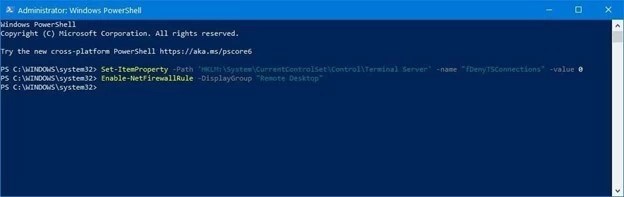
Step 3: Additionally, if you want to enable RDP through Windows Firewall, you can enter the following command and then press Enter.
Enable-NetFirewallRule -DisplayGroup “Remote Desktop”
How to disable RDP using PowerShell
After you complete the following steps, you can easily enable remote desktop on your system. Additionally, if you want to disable Remote Desktop, use these steps:
Step 1: Press Start and search for PowerShell. Again select the Run as administrator option and type the following command:
set-itemproperty -path 'HKLM:\System\CurrentControlSet\Control\Terminal Server' -name "fDenyTSConnections" -value 1
Step 2: Moreover, if you want to disable the feature through Windows Firewall, follow this command:
Disable-NetFirewallRule -DisplayGroup "Remote Desktop"
Conclusion
Now you have successfully learned how to enable ( RDP ) remote desktop in Windows 10 and various ways through which you can achieve your goal of enabling remote desktop in Windows 10. Keep practicing, and keep learning! Buy RDP from Oudel Inc.


