

To enable Remote Desktop on Windows Server 2012, open the Server Manager, go to Local Server, and find the Remote Desktop section. Click Disabled, then choose Allow remote connections to this computer in the System Properties window. Make sure to also allow Remote Desktop (TCP port 3389) through Windows Firewall. Once enabled, authorized users can connect to the server remotely using the Remote Desktop client.
Understanding Remote Desktop on Windows Server 2012:
1. Benefits of Remote Desktop on Windows Server 2012:
- Efficient Server Management: Remote Desktop enables administrators to manage server resources from a remote location, saving time and resources.
- Centralized Administration: Streamline server administration by accessing multiple servers remotely from a single interface.
- Cost Savings: Reduce the need for physical access to servers, minimizing travel costs and downtime.
- Enhanced Security: Implement secure communication protocols to protect sensitive server data during remote sessions.
2. Remote Desktop Services (RDS) Overview:
- Roles and Features: Windows Server 2012 includes the Remote Desktop Services role, providing a range of features for virtual desktop infrastructure (VDI) and remote application access.
Setting Up Remote Desktop on Windows Server 2012:
1. Access Server Manager:
- Launch Server Manager from the taskbar or start menu.

2. Add Roles and Features:
- In Server Manager, select “Manage” and choose “Add Roles and Features.”

3. Role-Based or Feature-Based Installation:
- Choose “Role-based or feature-based installation” and click “Next.”

4. Select the Server:
- Choose the server on which you want to install the role and click “Next.”

5. Select Role:
- In the “Select server roles” section, choose “Remote Desktop Services.” Click “Next.”

6. Add Features:
- Review the features that will be installed with the Remote Desktop Services role. Click “Next.”

7. Select Role Services:
- In the “Select role services” section, choose “Remote Desktop Licensing,” “Remote Desktop Session Host,” and any other services you require. Click “Next.”

8. Configure Remote Desktop Licensing:
- Choose whether to install the Remote Desktop Licensing role on the same server or another server. Click “Next.”

9. Review and Confirm:
- Review your selections and press “Install” to begin the installation process.

10. Complete Installation:
- Once the installation is complete, click “Close.”

11. Configure Remote Desktop Settings:
- Return to Server Manager and select “Remote Desktop Services” from the left pane. Click on the server name.

12. Deploy Desktop Session Host:
- In the “Deployment Overview,” click on “Tasks” and select “Deploy Remote Desktop Session Host.”
![How to Install RDS License Server 2022 [Your Ultimate Guide]](https://i0.wp.com/www.anyviewer.com/screenshot/windows/windows-server-2012/role-services.png?w=1200&ssl=1)
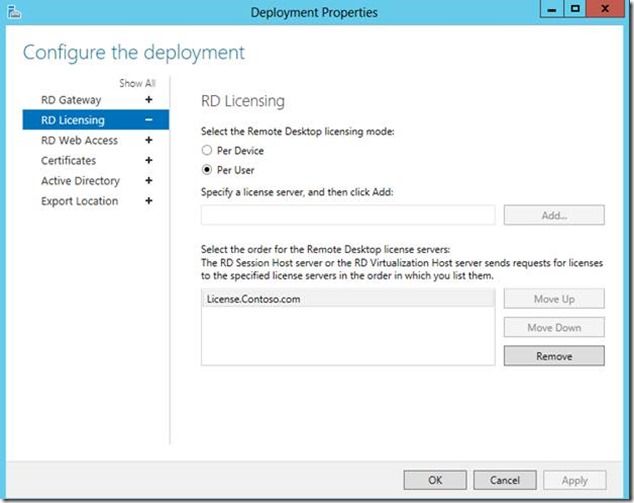
13. Configure License Mode:
- Choose the licensing mode (Per Device or Per User) and configure licensing settings. Click “Apply.”
14. Configure Session Collection:
- Create a session collection by specifying the collection name and user groups. Click “Next.”

15. Configure User Profile Disks (Optional):
- If required, configure User Profile Disks for user data persistence across sessions. Click “Next.”

16. Review and Confirm:
- Review your configuration settings and click “Create.”

17. Complete Deployment:
- Once the deployment is complete, click “Close.”

Configuring Remote Desktop Security:
1. Configure Network Level Authentication (NLA):
- NLA enhances security by requiring users to authenticate before establishing a remote connection. Ensure NLA is enabled in the server’s Remote Desktop settings.
2. Secure Sockets Layer (SSL) Certificate:
- Use SSL certificates to encrypt communication between the remote client and the server. Install a valid SSL certificate for enhanced security.
3. Implement Group Policies:
- Leverage Group Policy settings to define and enforce security policies for Remote Desktop sessions. Configure policies related to password policies, session timeouts, and more.
4. Firewall Configuration:
- Ensure that the server’s firewall allows Remote Desktop traffic. Create firewall rules to permit incoming connections on the Remote Desktop port (default is 3389).
5. Regular Software Updates:
- Keep the server up to date with the new security patches and updates. Regularly check for and apply Windows updates to maintain a secure environment.
Best Practices for Remote Desktop on Windows Server 2012:
1. User Authentication:
- Enforce strong user authentication measures. Encourage the use of complicated passwords and consider implementing multi-factor authentication for added security.
2. Resource Optimization:
- Optimize server resources to ensure a smooth remote desktop experience. Monitor resource usage and adjust server configurations as needed.
3. Remote Desktop Gateway:
- Consider deploying a Remote Desktop Gateway for enhanced security and remote access over the internet. A gateway allows secure access without the need for a VPN.
4. Session Limits:
- Implement session limits to control the duration of remote sessions. Configure settings such as idle session timeouts and maximum session durations.
5. Remote Desktop Licensing:
- Regularly check and manage Remote Desktop Licensing to ensure compliance with licensing requirements. Keep track of license usage and renew licenses as needed.
6. Logging and Auditing:
- Enable logging and auditing features to track remote desktop activity. Daily review logs to identify any suspicious or unauthorized access.
7. Remote Desktop Gateway:
- Implement a Remote Desktop Gateway for secure remote access over the internet. A gateway allows users to connect without the need for a VPN, enhancing accessibility and security.
Troubleshooting Common Issues:
1. Connection Failures:
- Issue: Users are unable to connect remotely.
- Solution: Check network connectivity, firewall settings, and ensure that Remote Desktop is enabled in server settings.
2. Licensing Issues:
- Issue: Licensing errors or warnings.
- Solution: Ensure that Remote Desktop Licensing is configured correctly, and valid licenses are available.
3. SSL Certificate Errors:
- Issue: SSL certificate-related errors during remote connections.
- Solution: Verify the SSL certificate configuration, ensure it is valid, and matches the server’s hostname.
4. Authentication Problems:
- Issue: Users experiencing authentication failures.
- Solution: Check user account permissions, password policies, and ensure NLA is enabled for added security.
5. Performance Lag:
- Issue: Slow performance during remote sessions.
- Solution: Optimize server resources, check for network bottlenecks, and consider adjusting session settings for better performance.
Conclusion:
Enabling Remote Desktop on Windows Server 2012 unlocks a wealth of possibilities for efficient server management and remote access. By following the step-by-step setup process, implementing security measures, and adopting best practices, administrators can establish a secure and streamlined environment for


